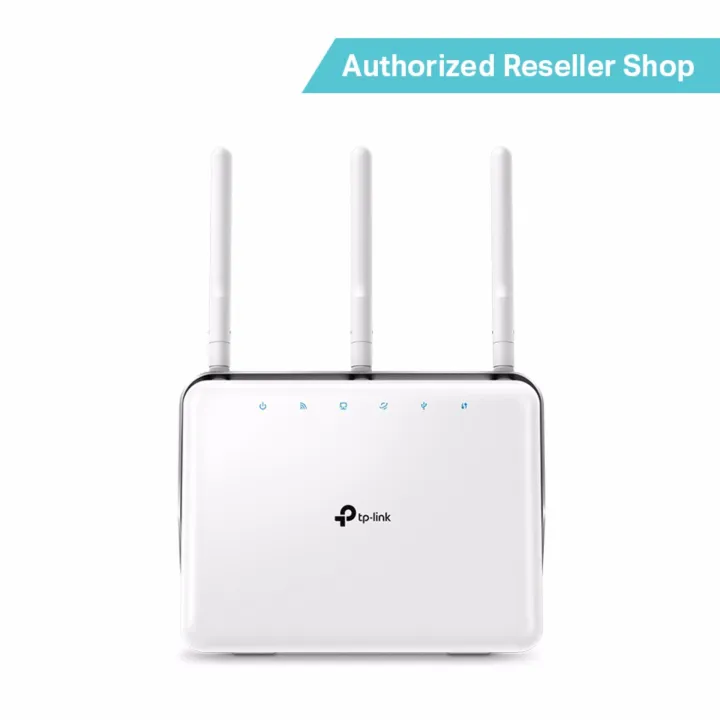
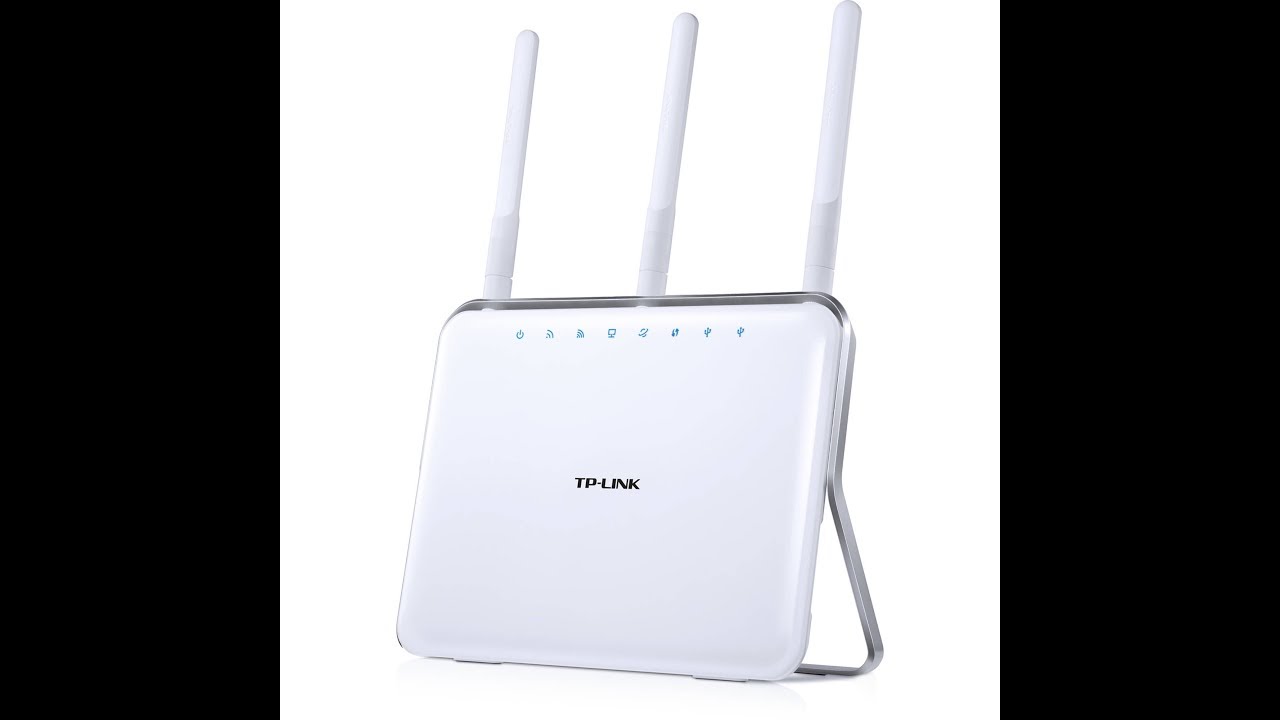
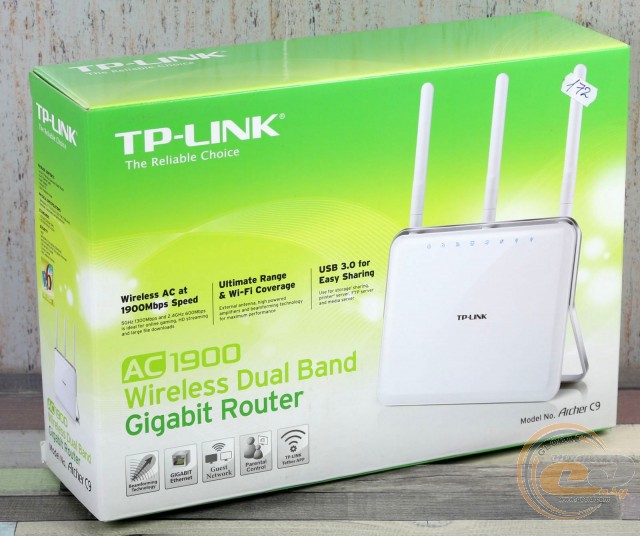
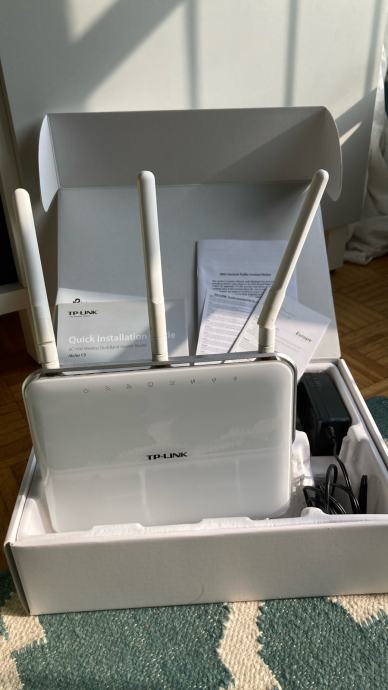
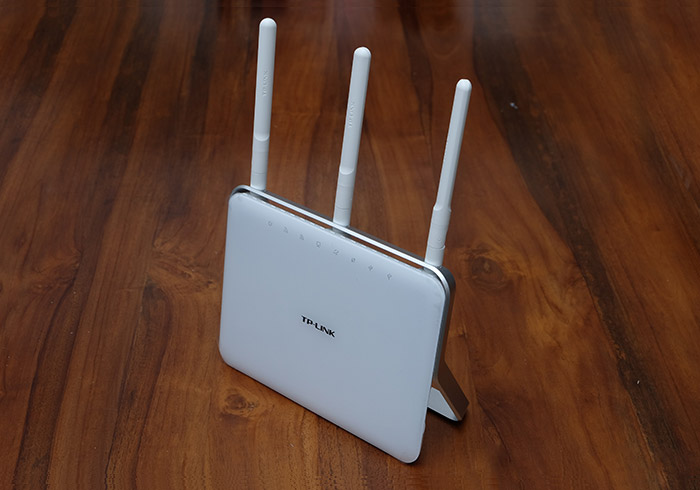
TP-Link Archer C9 Firmware Update Tutorial
Staying on top of firmware updates is essential for maintaining the performance, security, and functionality of your home network. In this article, we will guide you through the process of updating your TP-Link Archer C9 firmware seamlessly.
Why Update Firmware?
Ignoring firmware updates may affect your router's performance and leave your network vulnerable to security threats. TP-Link regularly releases new firmware versions that aim to resolve known software issues, improve device performance, and provide overall network stability. These updates often introduce new features, bug fixes, and security patches that can help keep your home network running smoothly.
Preparing for the Update
Before updating your firmware, make sure to:
- Download the latest firmware version from the TP-Link website.
- Choose the correct hardware version for your device.
- Check the documentation for any specific requirements or limitations.
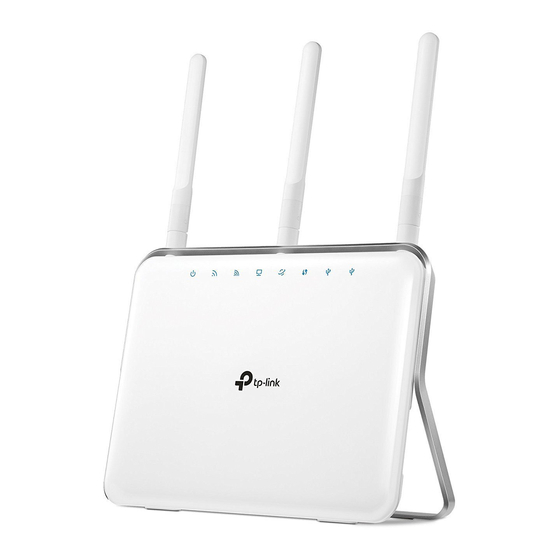
Downgrading or Upgrading Firmware
If you're looking to downgrade or upgrade your firmware, there are a few things to keep in mind:
- Downgrading may erase the current configuration.
- Upgrading to a newer firmware version may accept backups from previous firmwares.
The Update Process
The process of updating your TP-Link Archer C9 firmware is relatively straightforward:
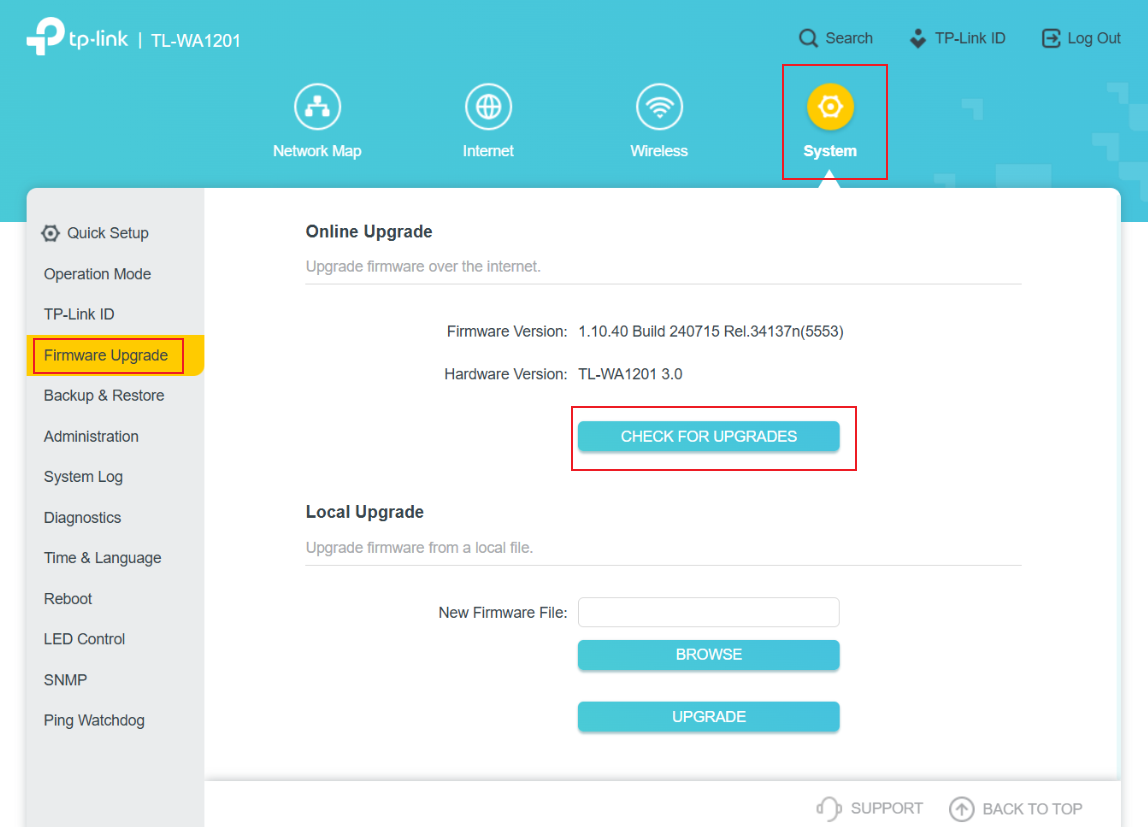
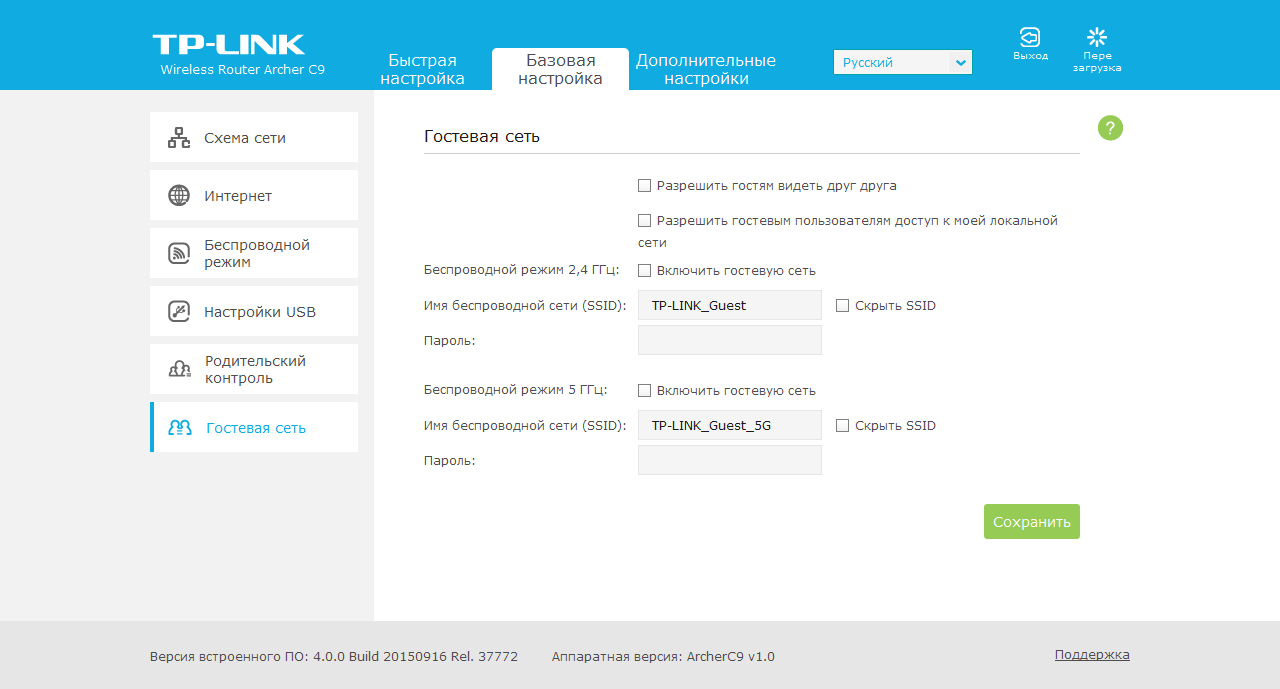
- Access your router's web-based management interface.
- Go to the System Settings or Advanced Settings tab.
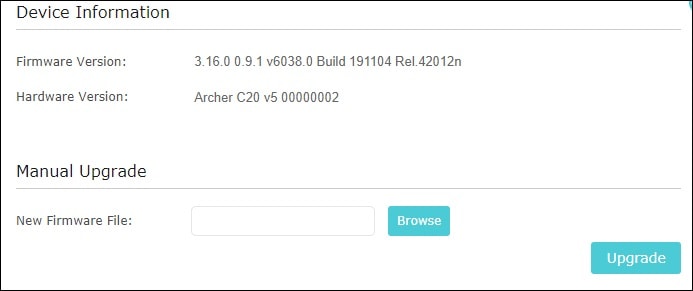
- Locate the firmware update section and click on it.
- Follow the on-screen instructions to upload the new firmware file.
- Wait for the update to complete and your router to restart.