Optimizing G Router Settings for Home Laptop Network: A Step-by-Step Guide
Looking to update your wireless network for better performance or security? Follow these simple steps for configuring your router and wireless network the right way. A properly optimized router setting can significantly enhance the speed, stability, and security of your home laptop network.
Why Optimize Your Router Settings?
With the increased demand for online streaming, video conferencing, and gaming, having a reliable and fast home laptop network is essential. Optimizing your router settings can help ensure a seamless and hassle-free online experience. By following these simple steps, you can improve your network's performance, reduce lag, and enhance overall stability.

Step 1: Change the Wi-Fi Channel
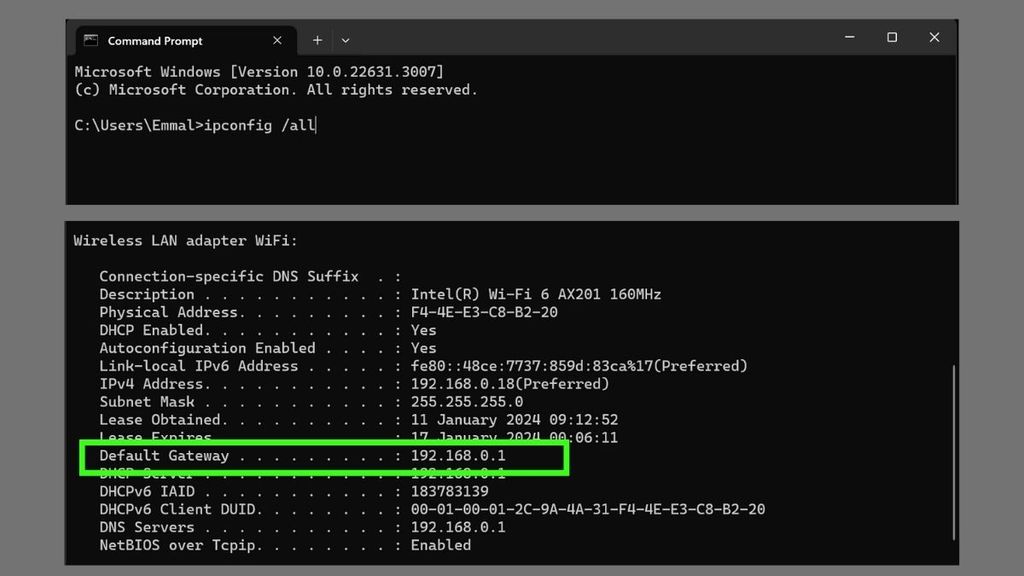
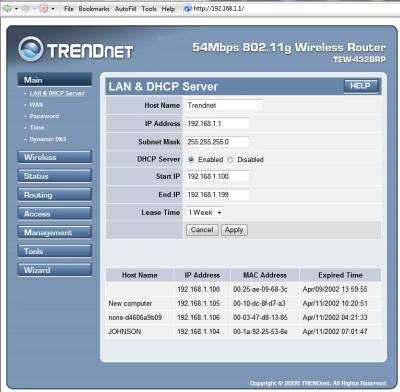
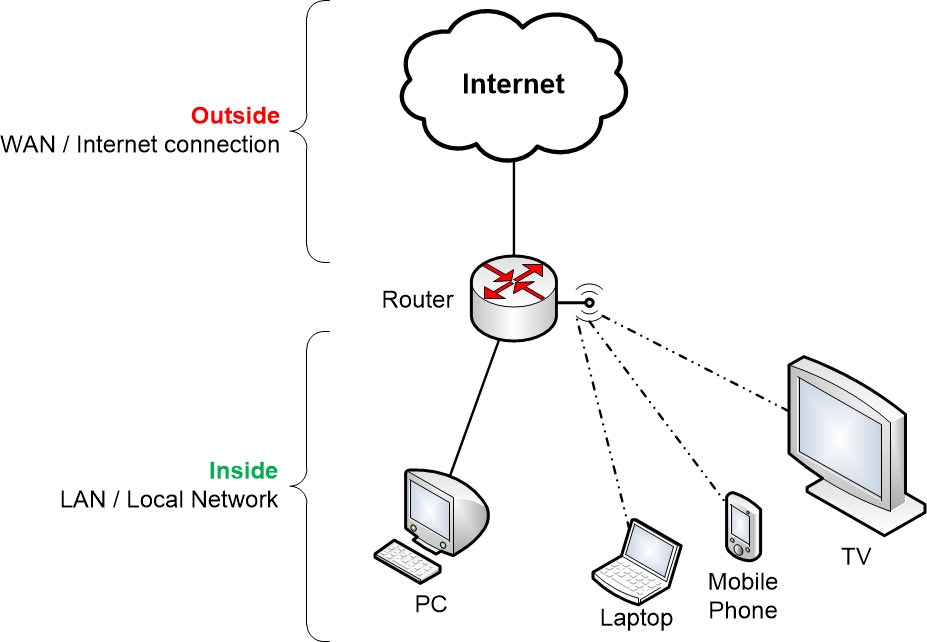
- Open your router's settings page by typing its IP address in a web browser. The IP address is usually located at the bottom of the router or on the manufacturer's website.
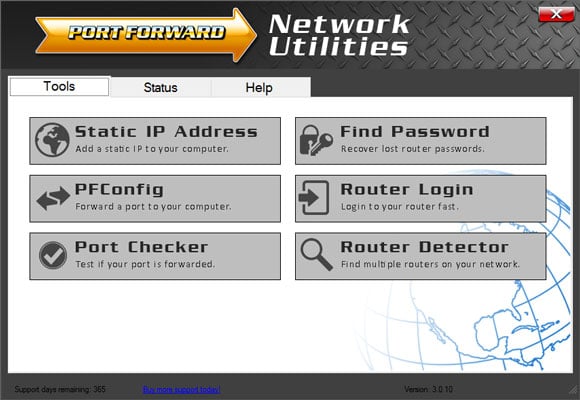
- Log in to your router using the default admin username and password. You can find this information in the router's manual or on the manufacturer's website.
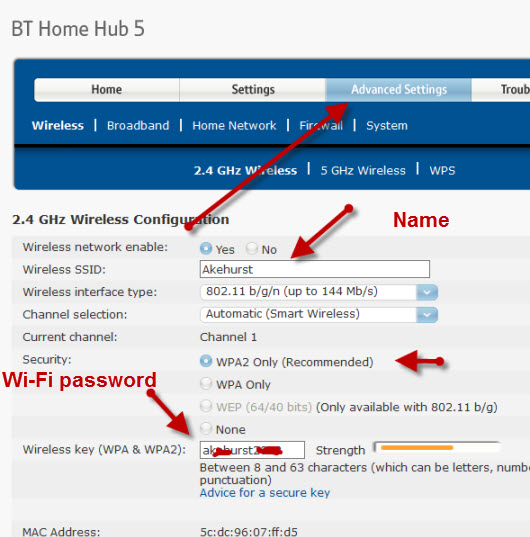
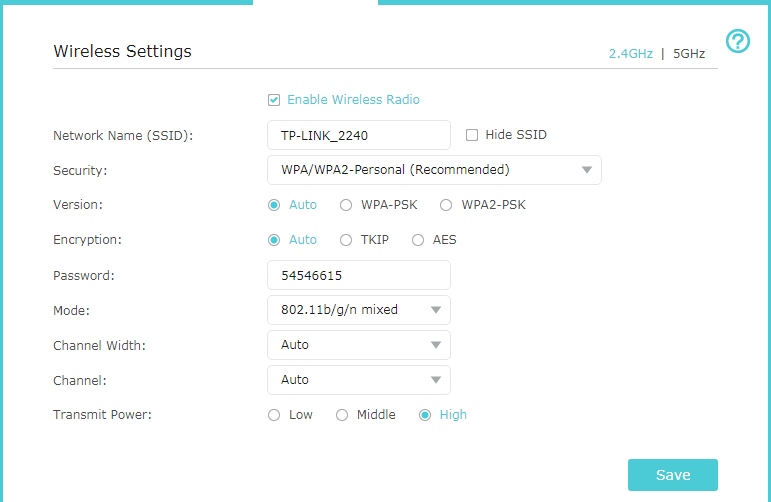
- Look for the "Wireless Settings" or "Wi-Fi Settings" menu and click on it.
- Change the Wi-Fi channel from the default setting to a less crowded channel using a tool like Wi-Fi Analyzer or inSSIDer. This will help reduce interference and improve signal strength.